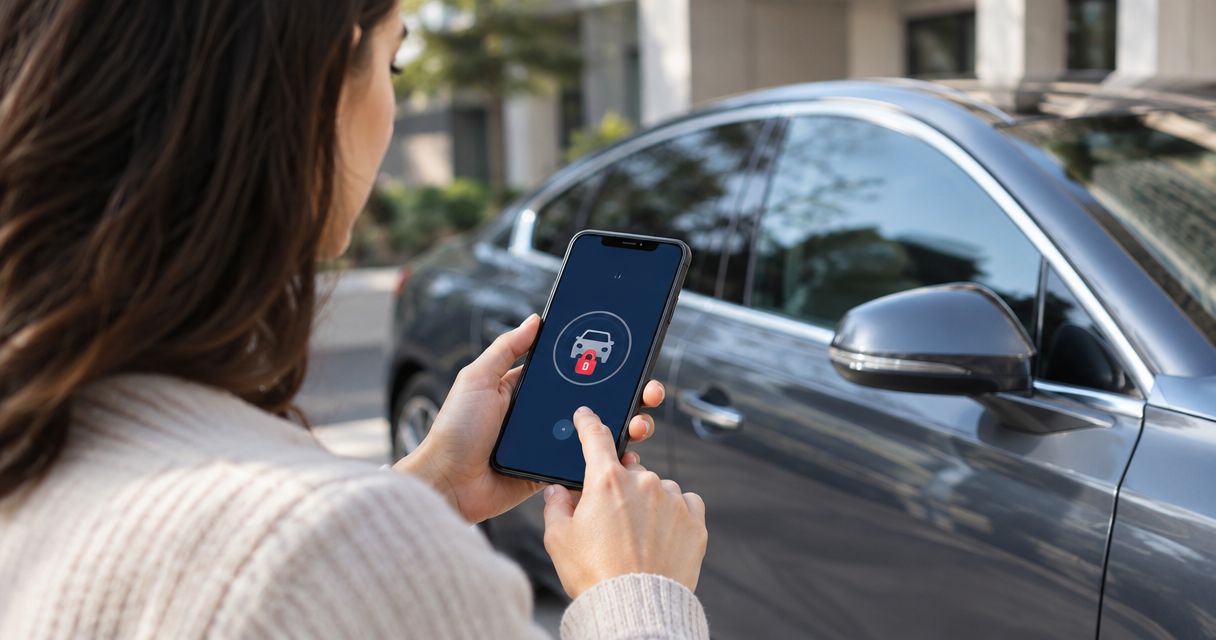
Locked out? Instead of retyping your location and vehicle details, use your connected car app’s supported roadside request feature, then confirm that help has accepted the job. A connected car app automatic lockout service request needs a supported service connection—not just a locked-door notification; for help now, contact Atlroadside for 24/7 lockout service across the Atlanta metro.
- A connected car app automatic lockout service request needs supported dispatch, authorization, and confirmation—not just a door-lock alert.
- Remote unlock and roadside assistance are different actions; check which your vehicle app actually supports.
- Atlroadside provides 24/7 lockout service for Atlanta drivers and commercial fleets.
- Confirm your current location, callback number, vehicle, and accepted request before relying on app-based dispatch.
Why this matters
A vehicle showing locked does not prove that its driver is locked out. You might be standing beside it with the key, sitting inside it, or checking it from home. Do not build a service request around door status alone.
The useful workflow connects your confirmed lockout to the information dispatch needs: where you are, which vehicle needs help, and how to reach you. Automation can carry that information when supported. It cannot replace confirmation that a provider has accepted your request.
For your 2026 setup, separate three things: a vehicle alert, a submitted request, and an accepted job. Only the last tells you that a provider has agreed to help.
Atlroadside lockout service is for Atlanta drivers and commercial fleets needing 24/7 roadside help. Call rather than troubleshooting an app while stranded in an unsafe spot. If someone is trapped inside and faces immediate danger, call 911.
Before you start
- Account access: Have access to the vehicle’s authorized connected-services account and the phone used for authentication. Check the manufacturer’s current instructions for your vehicle and app.
- Dispatch information: Keep your callback number, vehicle description, and ownership or authorized-use information ready. Fleet drivers also need their vehicle identifier and company escalation contact.
- The gotcha: Remote unlock, roadside assistance, and provider selection are separate capabilities. An app that unlocks a supported vehicle does not necessarily submit a lockout request or let you choose the responding company.
Do these checks before an emergency. A phone locked inside the car cannot serve as your only way to request help. Keep a separate way to reach your roadside contact or fleet dispatcher.
No manufacturer or app is specified here, so use the functions described below only where your app supports them. Follow its actual on-screen wording; do not look for a universal automatic-lockout switch.
Choose the right lockout workflow
Your first decision is whether the vehicle can be unlocked remotely or needs someone on site. These options do different jobs. Choose the action that solves the lockout, not the feature that sounds most automatic.
| Workflow | Best for | Advantage | Limitation |
|---|---|---|---|
| Supported remote unlock | Authorized users whose vehicle supports app-based unlocking | Attempts to restore access without an on-site service visit | Requires the supported feature and a working connection; sending a command is not proof the door opened |
| In-app roadside request | Drivers whose app supports lockout assistance | Can pass supported vehicle and location information into a service request | Provider routing and confirmation depend on the app; a request is not an accepted job |
| Direct roadside contact | Drivers needing help now or unable to use the app | Lets you explain the lockout, access restrictions, and vehicle directly | You must give dispatch the details yourself |
For 2026, check your current app and vehicle support rather than relying on an old screenshot or another driver’s setup. Even within the same manufacturer, follow the instructions for your own account and vehicle.
Vehicle access and connection
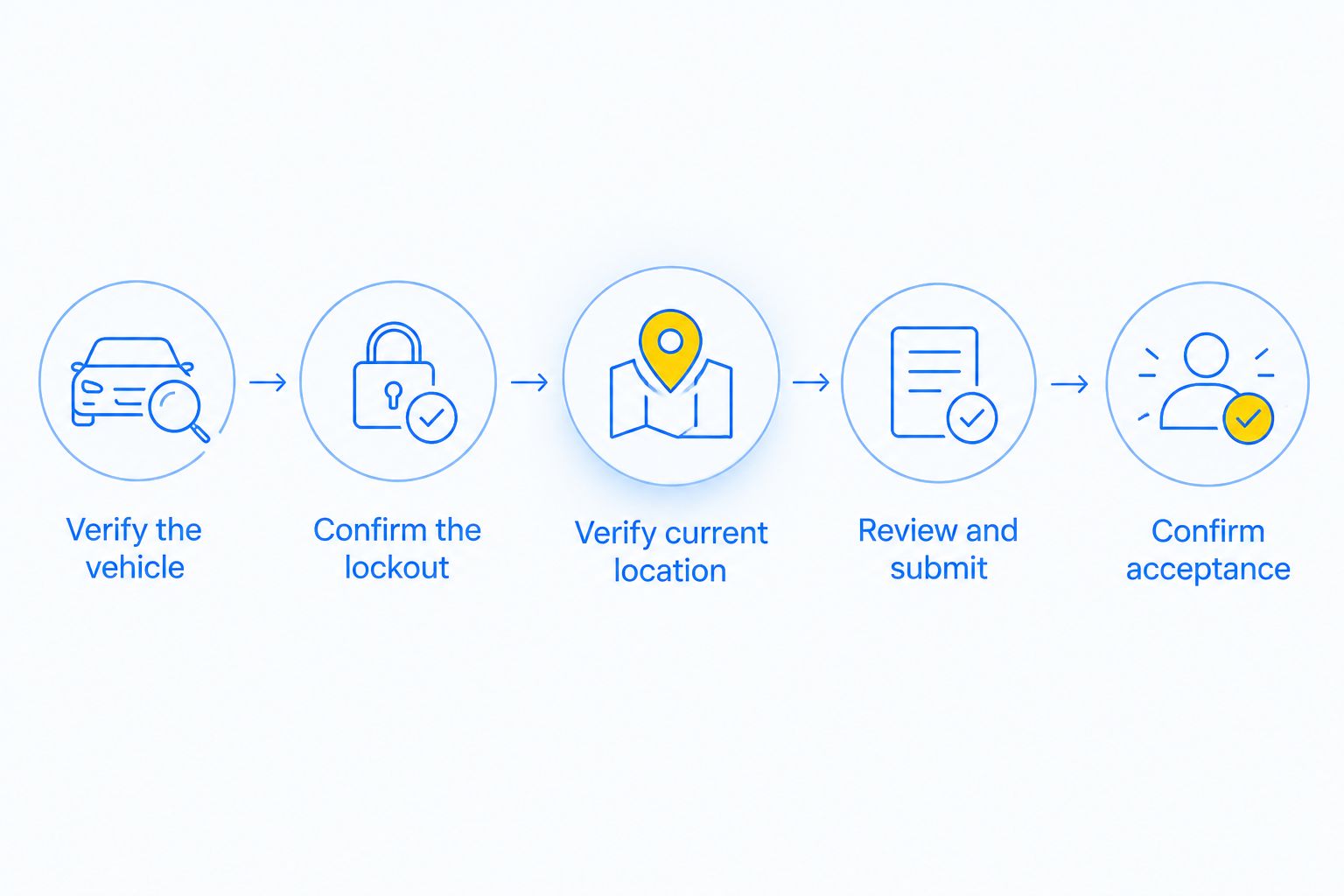
- Verify the vehicle. Open the authorized vehicle account and check that you have selected the car or truck beside you. Fleet accounts need particular care: confirm the unit identifier before sending any command.
- Check the connection. Confirm that your phone has a usable connection. Look at when the app last updated its vehicle information; an old location or door status is not a live reading.
- Confirm the lockout. Establish that you cannot enter and that the key or access device is unavailable. Do not turn a routine locked-door alert into an automatic roadside job.
- Attempt supported remote access. If your vehicle supports remote unlock, follow the manufacturer’s instructions and authentication prompts. Keep credentials private. Never send an account password or access code to a roadside provider.
- Check the physical result. Try the door only when it is safe. If it opens, stop the lockout workflow. If it stays locked, move to a roadside request or direct contact.
Expected result: You know which vehicle needs help, whether the app’s information is current, and whether remote access actually resolved the problem.
Do not keep repeating an unsuccessful unlock command without checking its result. A spinner or command-history entry is not physical access. If you need on-site help, say that clearly when you contact dispatch.
Lockout request and location
- Find the supported assistance function. Follow the app’s current help instructions for roadside service. If it does not offer lockout assistance, use direct contact instead of trying to force another service category.
- Choose the correct problem. Describe a lockout, not a dead battery, flat tire, or tow request. Add any related problem separately so dispatch understands the full situation.
- Verify your current location. Compare the displayed pin with your actual position. Give the road, direction of travel, nearby exit or landmark, and where the vehicle is stopped when relevant.
- Add access details. Explain whether the vehicle is in a parking garage, behind a gate, in a loading area, or beside traffic. Share those details through the service request or directly with dispatch.
- Confirm your callback number. Use a number you can answer now. Tell dispatch if the account phone is inside the locked vehicle and you are calling from another device.
- Review and submit. Check the vehicle, service type, location, and contact information before sending. Read the confirmation screen to establish what the app actually submitted.
Expected result: The request describes a real lockout at your current location, with a usable contact number and enough access information for dispatch to assess the job.
An app-carried location saves retyping, but you still need to verify it. Your phone’s position, a saved parking pin, and the vehicle’s last reported position are not interchangeable. Tell dispatch which one describes where help is needed.
Dispatch acceptance and handoff
- Confirm acceptance. Read the request status and any provider message. If the app only confirms submission, contact the service channel to establish whether someone has accepted the job.
- Identify the responding provider. Ask who is handling the request. Do not assume an app-selected provider is the same company you normally call.
- Give missing details directly. Explain vehicle access, key location, and any fleet authorization requirements. Say immediately if a child, vulnerable person, or animal is inside; immediate danger needs emergency services.
- Stay reachable. Keep the callback device available. Respond to requests for location clarification and tell dispatch if you move.
- Resolve duplicate requests. If you switch from the app to a direct provider, contact the original service channel about cancellation. Tell both parties about the other request rather than assuming it disappeared.
Expected result: You have an accepted request, know who is responding, and have a clear way to communicate changes.
Submitting twice does not establish which provider is coming. Keep one clear service path whenever possible. If your app has no usable status information, call for clarification instead of treating silence as confirmation.
Atlroadside provides lockout service across the Atlanta metro. Use direct contact when you need to explain the situation rather than continue troubleshooting app access; do not assume your vehicle app routes requests to Atlroadside.
Get lockout help now
24/7 lockout service for drivers and commercial fleets across the Atlanta metro.
Fleet variant: escalate a driver-confirmed lockout
For a commercial vehicle, route a confirmed lockout through the fleet’s approved service process. Automate the information handoff where supported, not the assumption that a locked vehicle needs service.
- Driver confirmation: Require the driver to confirm the lockout and current location. A vehicle alert alone should not initiate a service visit.
- Fleet authorization: Send the unit identifier, driver callback number, and service need to the responsible dispatcher. Follow the company’s approval process before submitting an outside request.
- Provider handoff: Pass the approved details through a supported request channel or by direct contact. Identify the vehicle type and site-access restrictions.
- Status update: Record acceptance, cancellation, or resolution in the fleet’s existing process. If the driver regains access, notify the provider and fleet dispatcher.
This is a workflow design, not a claim that every connected-car app supplies fleet automation. Use only integrations your software and service provider document and support.
In your 2026 fleet procedure, assign someone to handle unanswered requests and changed locations. Shared visibility helps only when a person owns the next action. For a wider dispatch process, see how to connect fleet GPS tracking to 24/7 roadside dispatch.
Troubleshooting
The app shows the wrong location
Compare the displayed position with your current surroundings. Correct the request if supported, or contact dispatch with the actual location. On an interstate, include direction of travel and a nearby exit or marker you can identify safely.
The unlock command does not open the door
Check the app’s command result and the manufacturer’s troubleshooting instructions. If access remains blocked, request lockout service. Do not describe an unanswered command as a successful unlock.
You submitted a request but have no acceptance
Contact the app’s assistance channel or the provider named in the request. Ask whether the job was accepted and how to communicate updates. If you arrange separate help, address the original request too.
You cannot sign in or your phone is inside
Use another available phone to contact roadside help or your fleet dispatcher. Explain that you cannot access the original device. Complete account recovery later; do not share passwords to bypass it.
The vehicle is open but still will not start
Report the new problem rather than continuing a lockout request. Tell dispatch what happens when you try to start the vehicle. Do not assume every no-start needs a jump start; service selection depends on the actual problem.
Customize your workflow
Keep the emergency procedure short enough to use beside the vehicle. Save the details you would otherwise have to find under pressure: roadside contact, vehicle identifier, fleet escalation contact, and an alternate callback method.
For your 2026 review, check the procedure after changing phones, vehicles, account access, or fleet software. Review the instructions without sending a live emergency request merely to test a button. Where a documented test function exists, follow its instructions.
Separate service needs. Lockouts require access help; fuel or diesel shortages, tire problems, jump starts, and towing need different descriptions. Atlroadside provides those roadside services, including heavy-duty towing and recovery, so explain the actual problem and vehicle before dispatch is arranged.
FAQ
Can a connected car app automatically request lockout service?
A connected car app can submit a lockout request only through a supported assistance or dispatch function. A door-lock notification alone does not establish a lockout or confirm that a provider has accepted a job.
Is remote unlock the same as a roadside assistance request?
No. Remote unlock sends a supported access command to the vehicle; a roadside assistance request asks for service. Confirm that the door actually opens before treating remote unlock as a solution.
Will my vehicle app automatically send Atlroadside?
Do not assume your vehicle app sends Atlroadside. Confirm the responding provider through the app’s assistance channel, or contact Atlroadside directly for Atlanta metro lockout service.
What should I give dispatch when I am locked out?
Give your current location, callback number, vehicle description, and a clear explanation of the lockout. Add garage, gate, traffic, or fleet authorization details that affect access.
What if my phone is locked inside the car?
Use another available phone to contact roadside help or your fleet dispatcher. Tell dispatch which number you can answer now instead of relying on the phone inside the vehicle.
Can fleets automate lockout requests for commercial vehicles?
Fleets can use a supported workflow to pass a driver-confirmed lockout through their approved dispatch process. Require location verification and authorization rather than sending service solely because a vehicle reports locked doors.
What should I do if a child is locked inside the car?
Call 911 if the child faces immediate danger. Do not delay emergency help while troubleshooting a vehicle app or waiting for a routine roadside request.
How do I check my lockout workflow in 2026?
Review your current vehicle support, account access, contact information, and assistance instructions. Use a documented test function if one exists; do not submit a live emergency request just to test the workflow.
One last thing
An automatic request is not an automatic arrival. The useful checkpoint is acceptance by a provider, followed by a working callback route.
Before you rely on your 2026 setup, make sure you can explain your location without the app. A verified landmark and an answerable phone matter when the pin is wrong or the vehicle stops reporting.