Stranded? Call (678) 502-0513 for roadside help; save the number in your phone so you do not have to search next time. Add Atlroadside as a regular contact and a calling shortcut—not as a replacement for your phone’s Emergency SOS service.
- Atlroadside roadside assistance serves Atlanta drivers and commercial fleets 24/7; save its number for direct calls.
- Save roadside assistance as an emergency contact on your phone, but keep Emergency SOS separate.
- On iPhone, save the contact and add a calling favorite; on Android, save it and mark it as a favorite.
- Emergency contacts receive alerts on supported phones; adding a roadside provider does not automatically request towing.
Already need help? Use Atlroadside for roadside assistance across the Atlanta metro. For an immediate threat to life or safety, call 911 instead.
Why this matters
A saved roadside number helps you place a call. An SOS emergency contact serves a different purpose. Confusing the two leaves you expecting assistance from a notification that does not request a truck.
Atlroadside roadside assistance is best for Atlanta drivers and commercial fleets needing direct, 24/7 breakdown help. Services include fuel delivery, jump starts, lockouts, tire changes, emergency towing, and heavy-duty towing and recovery.
Keep those services separate from police, fire, and medical response. A dead battery in a safe parking lot calls for roadside assistance. A vehicle fire, serious injury, or immediate danger calls for emergency services.
In 2026, the useful setup is simple: a saved provider contact, an easy calling shortcut, and a trusted person in your phone’s emergency-contact settings. Each has a job. None replaces the others.
Before you start
- Have the correct number and an unlocked phone. Use (678) 502-0513 from the supplied company contact information. You need access to your contacts, not a new roadside account.
- Know which contact app you use. The iPhone steps use Apple’s Contacts app. The Android steps use Google Contacts; other Android contact apps use different screens and labels.
- Do not confuse alerts with dispatch. Adding a company to Medical ID or an Android emergency-contact list does not order roadside service. Supported emergency features can share location or medical information with listed contacts, so choose trusted people for that role.
Park safely before changing settings. If you are already stranded beside moving traffic, make the necessary call first. Contact organization can wait.
Save contact: iPhone
Use this route if you have an iPhone. The goal is a normal contact card you can open and call—not a change to the side-button Emergency SOS function.
- Open Contacts.
- Tap + to create a contact.
- Enter Atlroadside in First name, or use the available business-name field in your contact editor.
- Tap add phone and enter (678) 502-0513.
- Tap Done.
- Open the saved card and check every digit before you use it.
Expected result: searching Contacts for Atlroadside opens a card with the correct phone number. Tapping the number starts a normal outgoing call.
Use one clear name. Saving the same company under several names makes it harder to find the right entry when you are tired, shaken, or working from a cab.
For your 2026 phone setup, keep the contact focused on calling. Do not put door codes, payment-card details, or other sensitive information in its notes. The provider does not receive your contact notes when you call.
You can add a short service reminder in the contact’s Notes field: fuel delivery, jump starts, lockouts, tire changes, towing, and heavy-duty recovery. Treat that as a memory aid, not a booking or service confirmation.
Save contact: Android
Use these steps in Google Contacts. Android manufacturers also supply their own contact apps, so start with the app you actually use rather than hunting for a screen your phone does not have.
- Open Contacts.
- Tap Create contact.
- If the app asks where to save the contact, choose the account you use for your regular contacts.
- Enter Atlroadside in First name.
- Enter (678) 502-0513 in Phone.
- Tap Save.
- Open the contact and check the number.
Expected result: the contact appears in the selected account and opens with a callable phone number.
Saving to your regular account keeps the contact with the address book you normally use. If you select a work account, its access and retention depend on your organization’s rules. Do not assume a company-managed contact will remain on your personal phone after a job change.
If your contact app does not show Create contact, use its new-contact control. Do not switch apps halfway through and create a duplicate just to match these instructions.
For a shared fleet phone, tell the next driver which account holds the entry. A contact saved under an account that is later removed is not a dependable handoff.
Add shortcut: direct calling, not SOS
After saving the contact, make it easier to reach. Choose the shortcut your phone supports, then check where it appears before you need roadside help.
iPhone calling favorite
- Open the saved contact in Contacts.
- Scroll to Add to Favorites and tap it.
- Choose Call, then select the saved roadside number.
- Open Phone and locate your favorites. The Phone layout depends on your installed iOS version and selected view.
- Confirm that the entry uses the correct contact and number.
Expected result: you have a direct calling favorite. Selecting it places a normal call; it does not activate Emergency SOS or automatically send your location.
Android contact favorite
- Open the saved entry in Google Contacts.
- Tap the star icon to mark the contact as a favorite.
- Return to your contact list and confirm the favorite status.
- Check whether your Phone app also displays the favorite. Contact and dialer layouts differ across Android devices.
Expected result: Google Contacts marks the entry as a favorite. Use the saved contact to call if your dialer does not display it in a favorites section.
A favorite is useful, but it is not a lock-screen emergency button. Unlocking requirements still apply. Do not weaken your phone’s security to make a roadside number easier to reach.
Which setup should you use?
| Setup | Best for | Advantage | Limitation |
|---|---|---|---|
| iPhone contact and calling favorite | iPhone drivers wanting a direct-call shortcut | Keeps the provider number easy to find | Does not turn Emergency SOS into roadside dispatch |
| Android contact and favorite | Android drivers wanting a searchable, marked contact | Keeps the number in the selected address book | Favorite placement differs between contact and Phone apps |
| Trusted person in emergency-contact settings | Someone who should receive emergency information | Supports the phone’s emergency-contact features | Notifications are not a towing request |
Use a calling shortcut for breakdown help and a trusted person for emergency alerts. That division matters more than the shortcut’s position on the screen.
Keep Emergency SOS contacts separate
Your phone’s emergency-contact list is not a roadside service directory. Select someone who knows you, can respond to an alert, and should receive the information your phone shares.
On iPhone, emergency contacts are managed through Medical ID:
- Open Health and tap your profile picture or initials.
- Open Medical ID, then tap Edit.
- Under emergency contacts, tap add emergency contact.
- Choose a trusted person and select the relationship.
- Tap Done.
On supported Android phones, look in Settings under Safety & emergency, then Emergency contacts. Use Add contact where that control is present. Some devices manage these settings through a separate safety app; use the instructions for your phone when the menu differs.
Expected result: your trusted person appears in the emergency-contact list, while the roadside provider remains available for direct calls.
Do not add a business merely to fill an empty emergency-contact field. Emergency notifications are not a confirmed service request, and a business telephone number is not necessarily able to receive or act on them.
For a 2026 safety check, review the people already listed. Remove outdated contacts and confirm that the remaining people are comfortable with the role. Do not test the setup by placing an unnecessary emergency call.
When you change phones or share a fleet phone
The adjacent workflow is checking the setup after a phone change, account change, or driver handoff. A shortcut is only useful if the correct contact still exists underneath it.
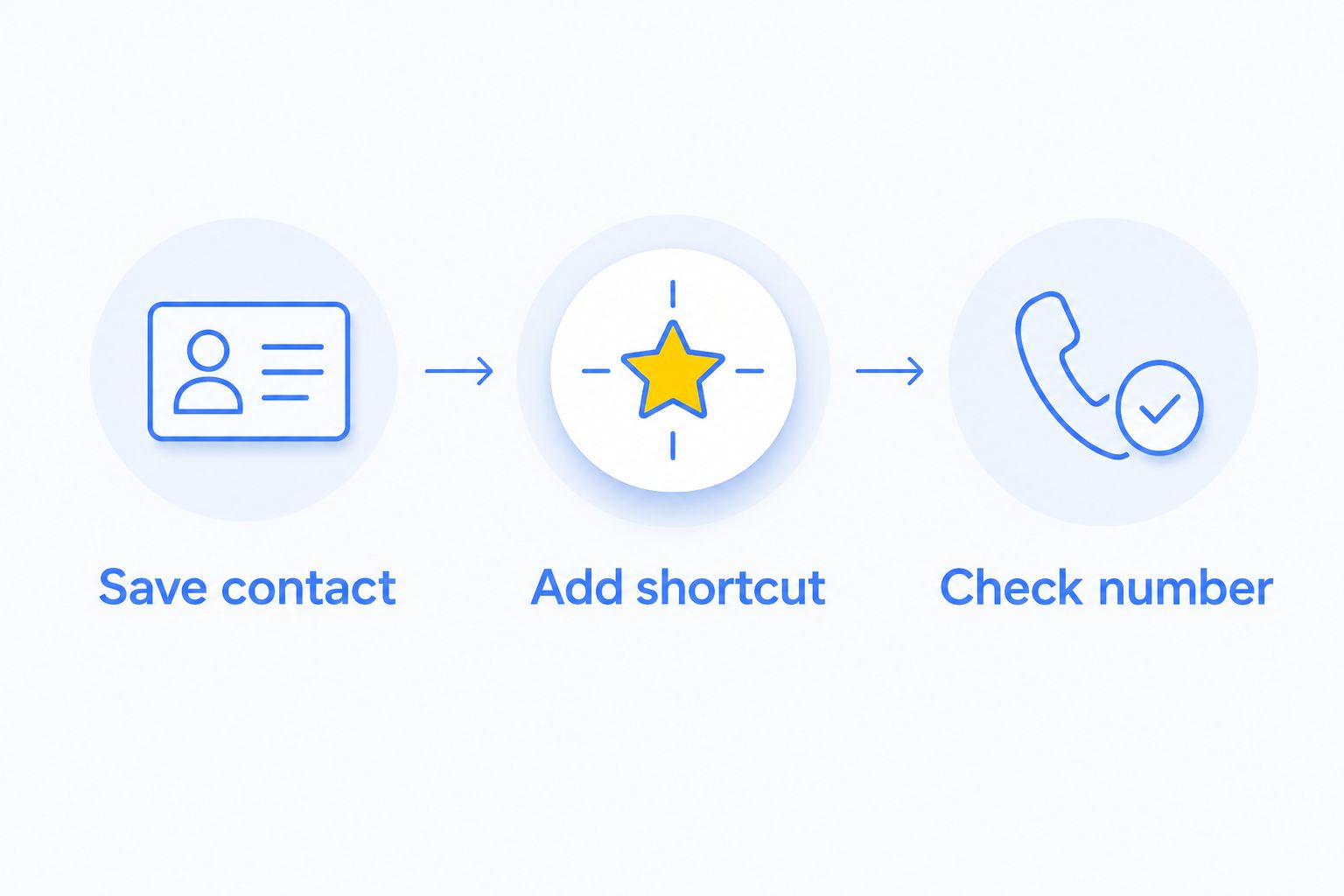
- Save contact: confirm that the roadside entry appears in the address book on the replacement or shared phone.
- Add shortcut: recreate the favorite if it did not transfer.
- Check number: compare the saved number with the company’s contact information, then review your trusted-person emergency contacts separately.
Expected result: the new phone has a usable roadside contact and an emergency-contact list appropriate for its current user.
For commercial drivers, keep dispatcher instructions separate from personal emergency contacts. Know who authorizes towing and where the vehicle should go before a breakdown forces that decision.
Troubleshooting
The saved contact does not appear
Check which account holds the entry and which accounts your contact list displays. Show the relevant account before creating another copy. On a replacement phone, confirm that the account containing the contact is signed in and its contacts are syncing.
The favorite opens the wrong number
Open the contact and inspect its phone fields. Remove an incorrect or duplicate number, then rebuild the calling favorite using the correct field. Changing a contact name alone does not resolve a favorite tied to the wrong number.
Emergency SOS calls emergency services instead
That is the distinction this setup preserves. Do not use the SOS gesture for an ordinary breakdown. Open your roadside contact and place a direct call; use emergency services when the situation threatens life or safety.
An emergency-contact alert did not request roadside help
An alert is not dispatch confirmation. Call the provider directly and describe the problem, location, and vehicle. Do not wait for a tow truck based only on an automated notification.
The phone cannot place a normal call
Check whether the phone has cellular service and whether calling is functioning. A saved contact cannot overcome a dead battery or loss of service. Use another available phone to request roadside help; for immediate danger, attempt an emergency call.
Customize your workflow
Save the number now, but prepare the information you will need to give when you call. State the road, direction of travel, nearest exit or landmark, vehicle type, and problem. Do not assume a direct call sends your GPS location.
For fuel delivery, say whether the vehicle needs gasoline or diesel. For a semi-truck or other commercial vehicle, identify it clearly and explain whether you need roadside help, towing, or recovery. Describe what you can observe without stepping into traffic to inspect it.
Fleet managers can use the fleet GPS-to-roadside dispatch guide to plan a separate location-sharing workflow. Saving a phone contact alone does not connect tracking software to dispatch.
Get roadside help now
24/7 help across Atlanta for fuel, batteries, lockouts, tires, towing, and heavy-duty recovery.
FAQ
How do I save roadside assistance as an emergency contact on my phone?
Save the provider as a regular contact, then add a calling favorite or shortcut. Keep your phone’s SOS emergency-contact list for trusted people who should receive emergency information.
Can I make Emergency SOS call Atlroadside instead of 911?
Do not use Emergency SOS as a roadside calling shortcut. Save Atlroadside for direct calls and leave emergency-service functions for situations involving immediate danger.
Will adding a roadside number to Medical ID automatically order a tow truck?
No. A Medical ID emergency contact is not a towing request; call the roadside provider directly and confirm the help you need.
Can I call a roadside favorite while my phone is locked?
A normal calling favorite does not guarantee lock-screen access. Use your phone’s documented emergency features for urgent safety needs, and unlock it to use the regular roadside contact.
Will the roadside company get my location when I call?
Do not assume a normal phone call sends your GPS location. Give the road, direction, nearest exit or landmark, and vehicle description, then follow the provider’s location-sharing instructions.
What should a semi-truck driver save alongside the roadside number?
Keep your dispatcher’s contact and vehicle-identification information accessible. Know your fleet’s towing-authorization process and explain whether you need diesel delivery, roadside help, towing, or recovery.
Should I test the setup by triggering Emergency SOS?
No. Check the contact number, calling favorite, and emergency-contact settings without activating an emergency call or sending an unnecessary alert.
One last thing
A contact stored inside your phone cannot help you if the phone is locked inside the vehicle. Keep a separate record of the roadside number somewhere you can access without that phone.
Make that part of your 2026 vehicle check. For a fleet, put the roadside and dispatcher contacts in the driver handoff instructions—not only in one employee’s address book.